
A customer emails: “My order shipped three days ago. Where’s my tracking number?”
You check the order. No tracking. You check five more completed orders. Three of them are missing tracking too.
Default WooCommerce gives you no way to filter orders by tracking status. There’s no “show me what’s missing” option. So gaps slip through until customers start asking.
This post shows you how to find every order missing a tracking number in about ten seconds, then turn that search into a permanent queue you can check every morning.
What you need
OrderFusion reads tracking data from major shipping plugins, including:
- WooCommerce Shipment Tracking
- Advanced Shipment Tracking (AST)
- AfterShip
- YITH WooCommerce Order & Shipment Tracking
If your tracking plugin isn’t on this list, you can still build the same setup. OrderFusion lets you create custom filters and columns from any order meta field, so you’d point it at whatever meta key your plugin uses for tracking numbers. The steps below work the same either way.
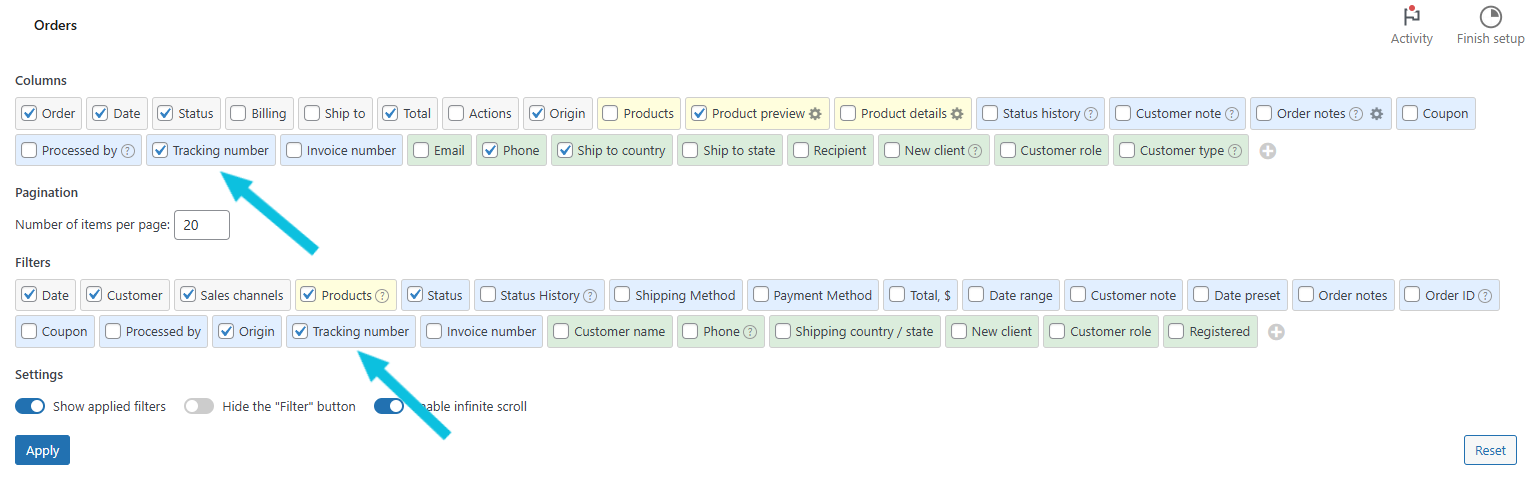
Step 1: Enable the tracking number filter
Open your WooCommerce orders screen. Click Screen Options in the top-right corner. Under Filters, check Tracking Number. Close Screen Options.
A new filter field appears in the row above your orders list.
Step 2: Search for empty tracking numbers
Type a single hyphen (-) into the Tracking Number filter field.
In OrderFusion, - means “show me orders where this field is empty.” The list updates immediately. Every order without a tracking number appears.
That’s it. One character, and you have your answer.
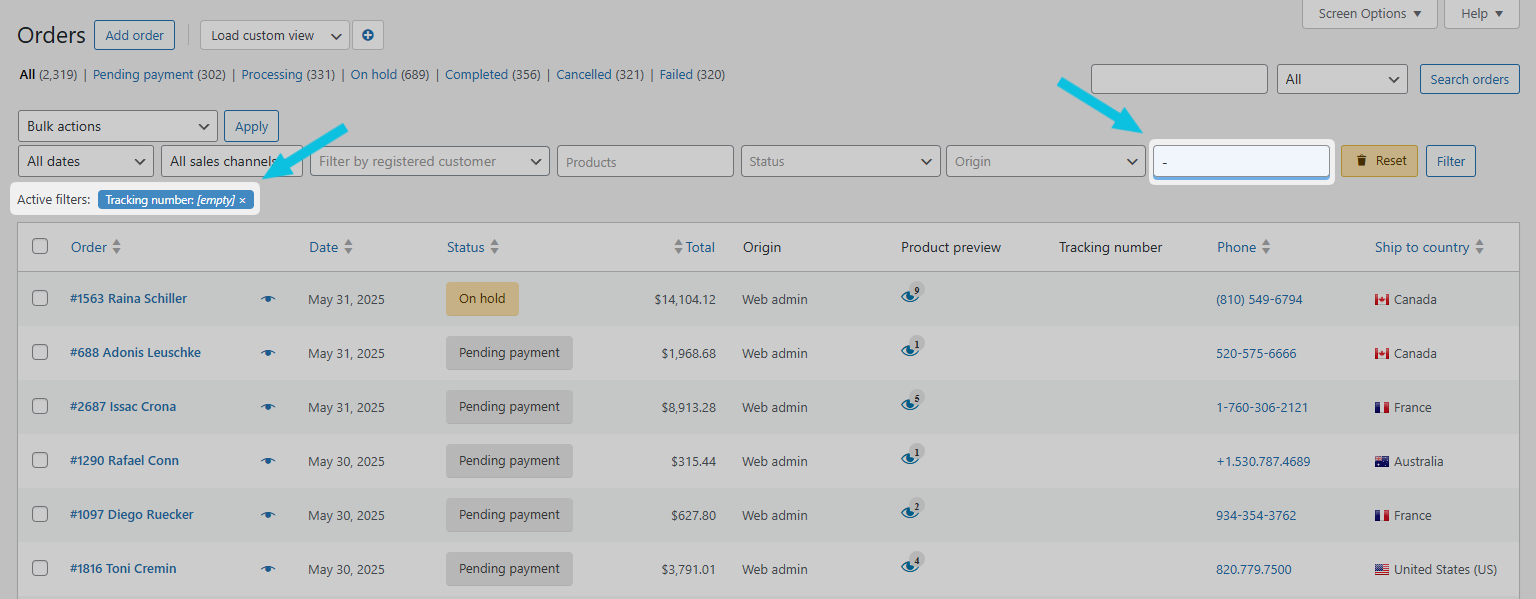
The opposite works too. Type * (asterisk) to see only orders that do have tracking numbers. Useful when you want to verify that tracking was entered correctly.
Step 3: Narrow it down by status
Not every order needs tracking. Pending orders haven’t shipped yet. Cancelled orders never will. You care about orders that should have tracking but don’t.
In the Order Status filter (already visible above your orders list), select Processing and Completed. OrderFusion lets you pick multiple statuses at once.
Now the list shows only active orders that are missing tracking. These need attention right now.
If your store has orders that never need tracking (local pickup, digital products), see “Handling orders that don’t need tracking” below for how to exclude them.
Step 4: Save this as a view
You’ll use this filter combination every day. Save it so you don’t re-enter the criteria each morning.
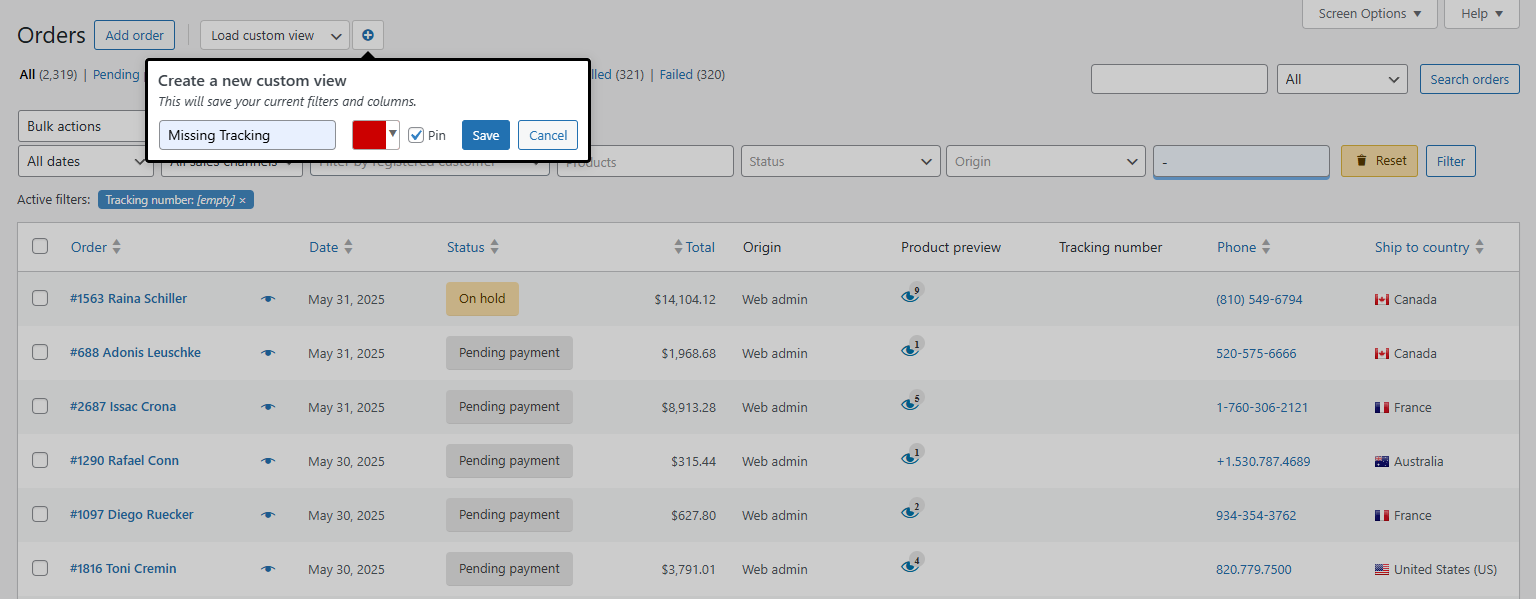
- Click Create custom view above the orders list (or the + button if you already have views)
- Name it something clear: “Missing Tracking”
- Pick a color (red works well for “needs attention”)
- Click Save
The view stores everything: filters, columns, sort order. Load it anytime from the views dropdown.
Want to try this yourself? Install OrderFusion Lite (free) and start filtering orders in minutes. Need saved views, custom meta columns, or Products & Coupons page support? See OrderFusion Pro.
Step 5: Pin it for daily monitoring
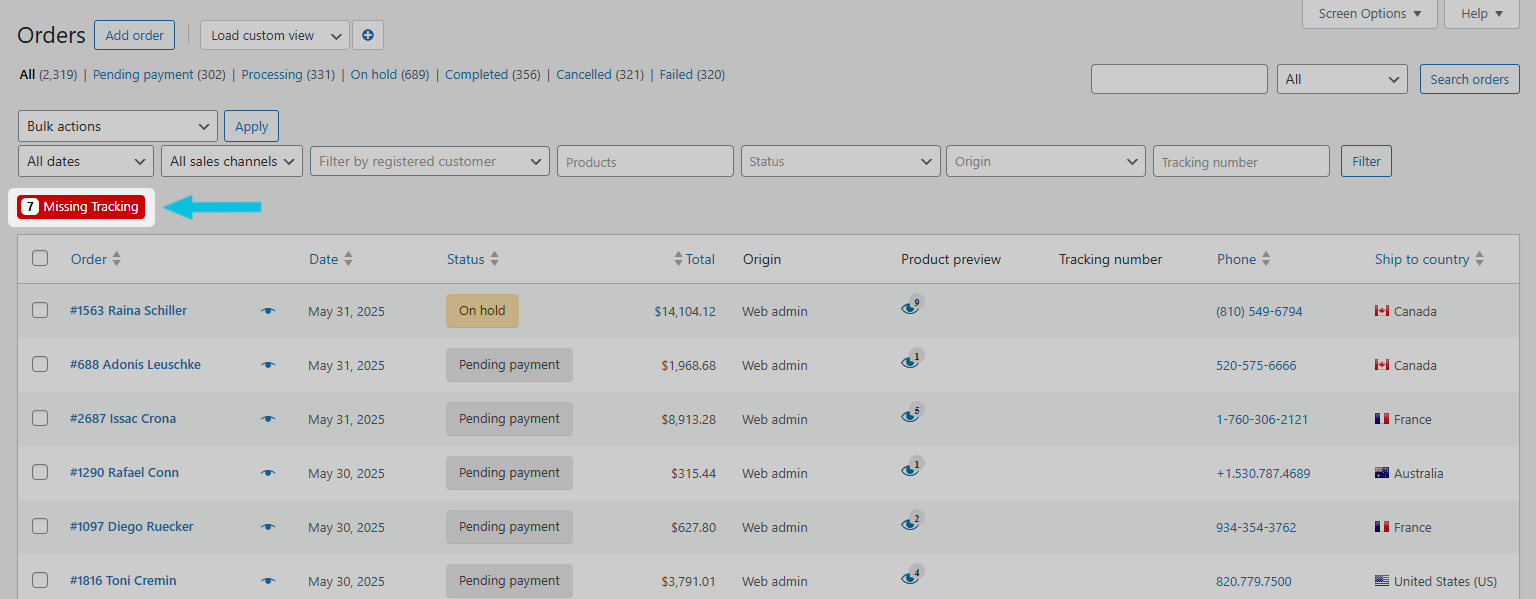
Pin the view so it shows as a badge at the top of your orders screen with a live order count.
- Open the custom views dropdown
- Click the pin icon next to “Missing Tracking”
Now you see something like (7) Missing Tracking above your orders list. That number updates every time the page loads. Zero means every order has tracking. Anything higher tells you exactly how many need attention.
A real workflow: daily tracking audit
Here’s how a fulfillment team at a mid-size store uses this setup:
Morning: Open the orders screen. The badge says “(12) Missing Tracking.” Click it to load the view.
Work through the list: Open each order, paste the tracking number from your carrier’s system, save. Or use a bulk tracking import if your plugin supports it.
End of day: Check the badge again. Zero means you’re clear. If it shows (3), three late-day shipments still need tracking from the carrier.
Finding the orders takes three seconds. Compare that to clicking into each order one by one.
Add the tracking number column too
While you’re setting up, enable the Tracking Number column. Go to Screen Options, scroll to Columns, and check Tracking Number.
Now tracking numbers appear directly in the orders list. When you load your Missing Tracking view, orders without tracking show a blank cell in that column. Fill it in, and the order drops out of the view on next refresh.
Handling orders that don’t need tracking
Digital products, local pickup, in-store transactions. These orders will never have tracking numbers, and they’ll keep appearing in your Missing Tracking view.
Two fixes:
-
Filter by shipping method. Add the Shipping Method filter to your view and select only shipped methods (Standard, Express, Free Shipping, etc.). Leave Local Pickup unselected. Pickup orders drop out of the queue automatically.
-
Filter by status. If you use a custom order status for pickup or digital orders (like “Ready for Pickup” or “Download Sent”), leave those statuses unselected in your Order Status filter. Only select statuses that apply to shipped orders.
Tune the view until it shows only orders that genuinely need tracking. Then save the updated configuration.
Try it yourself
See the Tracking Number filter in action (demo) – type - in the tracking filter, save a view, and pin it. Takes about two minutes to set up, and you’ll use it every day.
For the full filter reference, check the OrderFusion documentation.