

Your invoicing plugin creates invoice numbers for every order. But WooCommerce buries them. To find which order matches invoice INV-2024-00345, you open orders one by one, scanning each detail page until you find it.
That’s 15-20 seconds per order. When your accountant sends a list of 30 invoices to reconcile, that’s 10 minutes of clicking.
OrderFusion adds invoice numbers directly to your WooCommerce orders list. You can see them at a glance, search by invoice number, find orders missing invoices, and export the whole thing to CSV for your bookkeeper.
What you need first
WooCommerce doesn’t generate invoice numbers on its own. You need an invoicing plugin. OrderFusion works with the popular ones:
- PDF Invoices & Packing Slips for WooCommerce (WP Overnight)
- Invoices for WooCommerce (Bas Elbers)
- Booster for WooCommerce
- YITH WooCommerce PDF Invoice (premium, via yithemes.com)
If your plugin stores invoice numbers as order meta (and most do), OrderFusion picks them up automatically.
Add the invoice number column
- Go to WooCommerce > Orders
- Click Screen Options (top-right corner)
- In the Columns section, check Invoice Number
- Close Screen Options
Invoice numbers now appear in your orders list, right alongside order totals and status. No more opening individual orders.
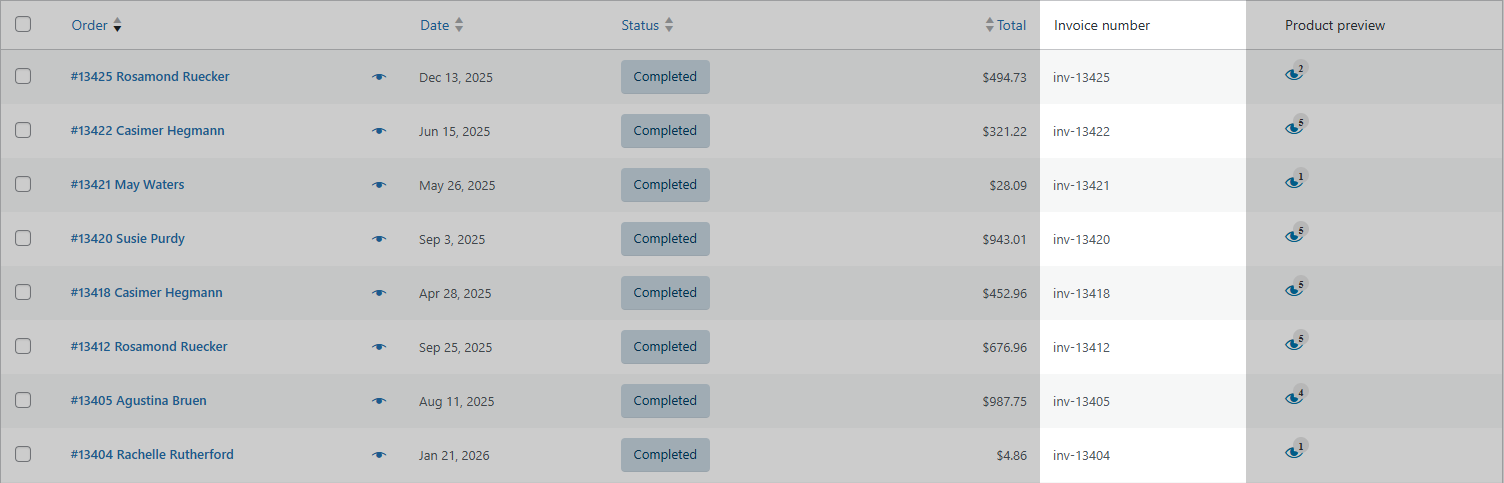
What if the column is blank? Two likely reasons. Either the order doesn’t have an invoice yet (your plugin might only generate invoices for completed orders), or your invoicing plugin stores the data under a non-standard meta key. If it’s the second case, create a custom column with your plugin’s specific meta key. See the section below on non-standard meta keys.
Search by invoice number
Your accountant emails: “Can you check invoice INV-2024-00345?”
Before, that meant opening orders one by one. Now:
- In Screen Options, enable the Invoice Number filter
- Type
INV-2024-00345in the filter field - The orders list updates instantly to show matching orders
Partial matches work too. Type INV-2024-003 to find all invoices in that range. Useful when you need to pull a batch of sequential invoices for a quarterly audit.
Find orders missing invoices
This one saves you at month-end. Some orders slip through without invoice generation. Maybe a payment gateway hiccup, maybe a status that doesn’t trigger your invoicing plugin. Either way, you need to catch them before closing the books.
- Enable the Invoice Number filter
- Type a hyphen (
-) in the filter field - Apply
That hyphen is a special symbol in OrderFusion. It means “show orders where this field is empty.” You get every order without an invoice number, so you can generate the missing invoices and keep your records clean.
The opposite works too. Type an asterisk (*) to see only orders that have invoice numbers.
Want to try this yourself? Install OrderFusion Lite (free) and start filtering orders in minutes. Need saved views, custom meta columns, or Products & Coupons page support? See OrderFusion Pro.
Build an accounting view
Filters and columns are useful on their own. But accounting uses the same setup every day: same columns, same filters, same layout. Save it once so you never rebuild it.
Here’s an accounting-friendly setup:
Columns:
– Order # and customer name
– Date
– Total
– Payment method
– Invoice number
– Status
Filters:
– Date range (set to current month)
– Status: Completed
To save this as a reusable view:
- Set up the columns and filters above
- Click the + button in the custom views area
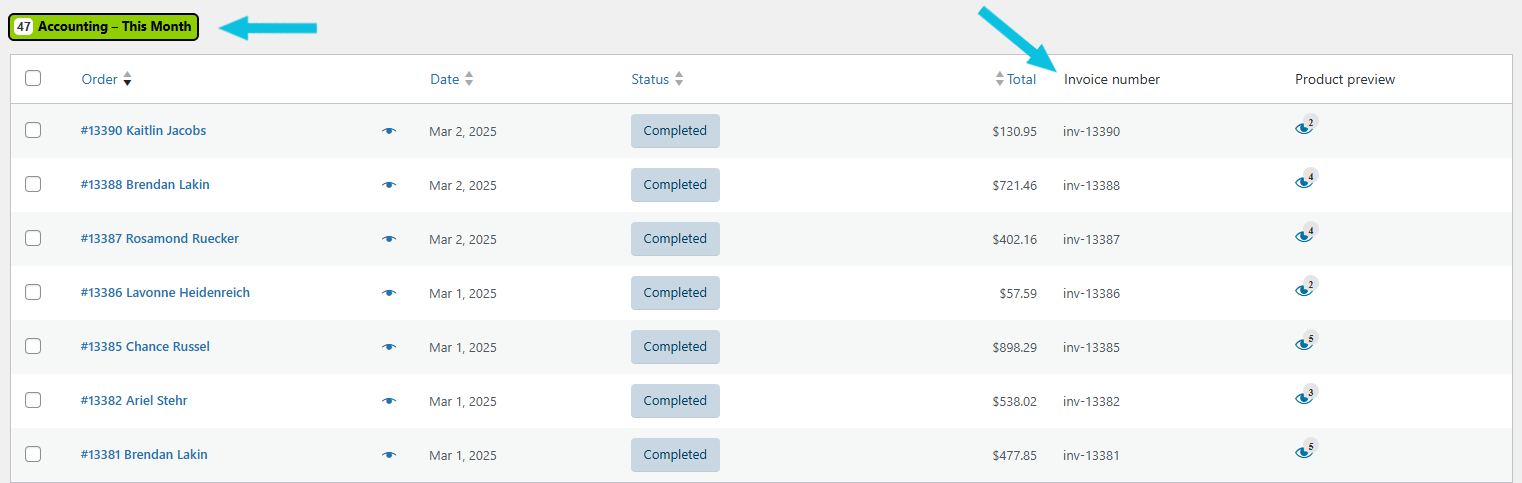
- Name it “Accounting – This Month”
- Click Save
Next month, load the view, adjust the date range, and you’re ready. No rebuilding, no forgotten columns.
Pin it for faster access. Open the views dropdown, click the pin icon next to your accounting view, and it appears as a badge above the orders list with a live order count. “(47) Accounting – This Month” tells you at a glance how many completed orders are waiting for review.
Export for your bookkeeper
Once your accounting view is set up, exporting takes three clicks:
- Load your accounting view
- Open the Bulk actions dropdown and select Export All to CSV
- Click Apply
The CSV file downloads with exactly the columns you see on screen, in the same order. Hand it to your accountant, import it into QuickBooks or Xero, or drop it in a shared folder.
Two format options in OrderFusion settings (WooCommerce > Settings > OrderFusion):
- WooCommerce Style groups related fields together. More compact.
- Table Style puts each field in its own column. Better for sorting and pivot tables.
Table Style works best for accounting imports. Each value gets its own column, so automated tools can map fields without manual cleanup.
When your invoicing plugin uses a non-standard meta key
Most invoicing plugins store invoice numbers under a meta key that OrderFusion recognizes automatically. But some use custom keys.
If the built-in Invoice Number column shows blank even though your orders have invoices:
- Open any order that has an invoice
- Scroll to the Custom Fields section (enable it in Screen Options if you don’t see it). On WooCommerce versions older than 8.8, this section may not appear with HPOS – check your invoicing plugin’s documentation for the meta key name instead.
- Find the field your invoicing plugin uses. Note the exact meta key (something like
_wcpdf_invoice_numberor_invoice_number) - Back in the orders list, click Screen Options
- In the Columns section, click the + button
- Enter a name like “Invoice #” and paste the meta key
- Set column type to Text
- Click Create Column
Your custom column now displays invoice numbers from your specific plugin. You can also create a matching custom filter with the same meta key, so you can search by invoice number just like the built-in filter.
Try it yourself
Open the demo and toggle the Invoice Number column on. Filter for empty values, build an accounting view, export a CSV. The whole setup takes under five minutes.
For step-by-step configuration details, check the OrderFusion documentation.