

“Which orders have SKU BLU-JKT-M?” It’s a simple question. And in the default WooCommerce orders list, you can’t answer it.
WooCommerce has a built-in product filter. It searches by product name and requires a page reload every time you use it. But it doesn’t search by SKU. If your warehouse team works with SKUs, or you need to find orders by UPC codes for a recall, the built-in filter won’t help.
This post shows you how to filter WooCommerce orders by SKU, product name, or identifiers like UPC, EAN, ISBN, and GTIN – with instant AJAX results instead of page reloads.
What the built-in product filter can’t do
WooCommerce’s default product search has two limitations:
No SKU search. The built-in filter queries order_item_name only – the product title stored in each order. It doesn’t touch the SKU field. If you search “BLU-JKT-M”, you get zero results even if fifty orders contain that product.
Page reload on every search. Each filter submission reloads the entire page. When you’re checking multiple products or refining a search, those reloads add up.
How to add product filters
OrderFusion adds filters through WooCommerce’s Screen Options panel. Here’s how to enable product filtering:
1. Open Screen Options
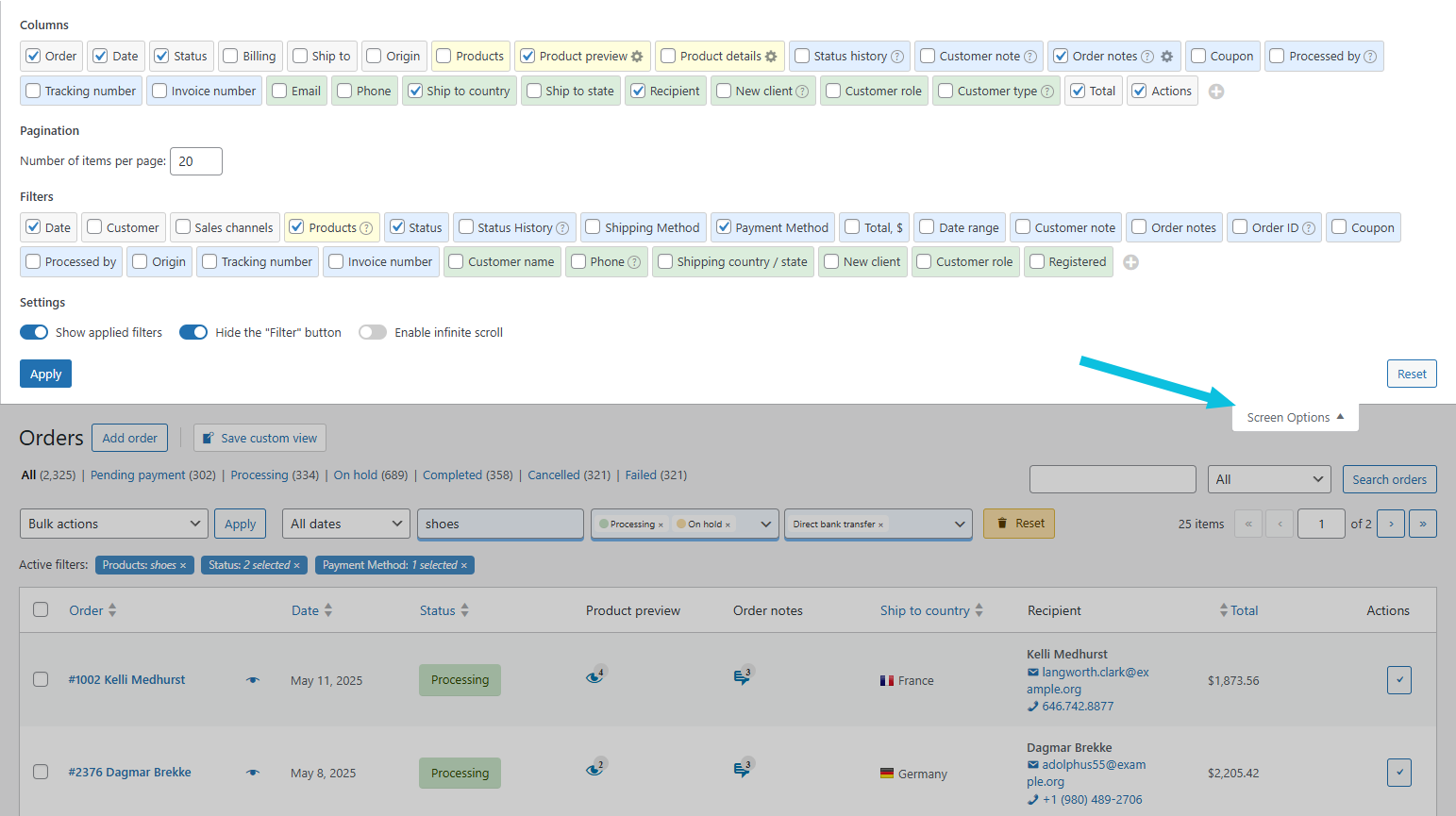
Go to WooCommerce > Orders. Click Screen Options in the top-right corner of the screen. This expands a panel with sections for Columns, Filters, and Settings.
2. Enable the Products filter
In the Filters section, find the Products checkbox. It has a light yellow background – that’s how OrderFusion groups product-related filters. Check the box and close Screen Options.
The Products filter now appears in the filter row above your orders list.

3. Type your search
Click into the Products filter field and start typing. Enter a product name, SKU, or any product identifier. The orders list updates automatically as you type – no need to click a Filter button.

That’s it. Enable once, use forever. The filter stays in your filter row until you disable it.
What the Products filter searches
One filter field, multiple search targets. When you type in the Products filter, OrderFusion searches:
- Product names – Full or partial matches
- SKU codes – Your internal product codes
- Global identifiers – GTIN, UPC, EAN, ISBN
WooCommerce 9.2+ includes a native identifier field in the Inventory tab labeled “GTIN, UPC, EAN, or ISBN”. OrderFusion searches this field automatically.
Example: A customer calls about an order. They don’t have the order number, but they have the UPC from the product packaging: 012345678901. Type that into the Products filter, and you’ll see every order containing that product.
Combine filters for precision
Filters combine with AND logic. Every condition must match for an order to appear. A few examples:
Find unfulfilled orders for a specific product:
Enable Status filter + Products filter. Set Status to “Processing” and type your product name.
Find product orders from this month:
Enable Date Preset filter + Products filter. Select “This month” and type your product name.
Find high-value orders containing a product:
Enable Order Total filter + Products filter. Set minimum to 500 and type your product name.
Need more filters? Click Screen Options and enable whatever you need. OrderFusion has filters for shipping method, payment method, customer location, tracking numbers, and more.
Want to try this yourself? Install OrderFusion Lite (free) and start filtering orders in minutes. Need saved views, custom meta columns, or Products & Coupons page support? See OrderFusion Pro.
Save filter combinations as views
If you check orders for the same product regularly – maybe a bestseller or a problem item – save the filter as a custom view.
1. Set up your filters
Enable the Products filter. Type your product name. Add any other filters you want (status, date range, etc.).
2. Click the + button
Look for the custom views block above your orders list. Click the + button to create a new view.
3. Name it something useful
Enter a name like “iPhone 14 orders” or “Recall: Batch 47”. Optionally pick a color to make it easy to spot. Check Pin this view if you want quick access.
4. Click Save
Your view now appears in the custom views dropdown. Loading it restores your exact filter setup – columns, filters, values, everything.
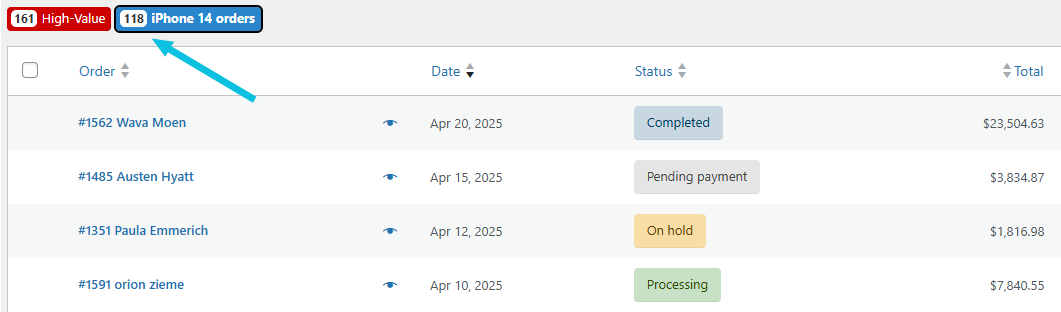
Pinned views appear as badges above the orders list with live counts. “(118) iPhone 14 orders” tells you 118 orders currently match. Click the badge to load that view instantly.
Real scenario: supplier quality issue
Your supplier emails: “Batch 47 of the Blue Widget had a manufacturing defect. Which customers received it?”
Without product filters, you’d export all orders to a spreadsheet, filter by product, then cross-reference with batch information. Maybe an hour of work, depending on your order volume.
With OrderFusion:
- Type “Blue Widget” in the Products filter
- Enable Date Range filter, set the dates when Batch 47 shipped
- Select Export All to CSV from bulk actions
Done in a minute. You have your customer list. You can start reaching out.
Performance with large catalogs
OrderFusion’s product search queries the database directly instead of loading everything into memory. It works whether you have 100 products or 100,000.
Filters apply via AJAX – the page doesn’t reload. Type a product name and watch the results narrow in real time.
Try it yourself
The fastest way to understand product filtering is to try it. Open the demo and search for any product in the sample orders.
Click Screen Options, enable Products filter, type a name. That’s all it takes to answer “which orders have that product?”
For setup instructions and filter reference, see the OrderFusion documentation.